How Do You Turn Off Motion Blur in Oblivion Reloaded?
To turn off motion blur in Oblivion Reloaded, first open the in-game OR graphics menu (press O), go to Options → Graphics, and set motion blur to Off. Then open `DataOBSEPluginsOblivionReloaded.ini`, change `MotionBlur=1` to `MotionBlur=0`, and optionally set `SaveSettings=0` so it can’t turn itself back on. Restart the game and test quick camera movements; next you can fine‑tune other blur and reflection effects for a cleaner image.
Key Takeaways
- Open the in-game Oblivion Reloaded graphics menu with the O key, go to Options → Graphics, and set Motion Blur to Off.
- Alternatively, edit `DataOBSEPluginsOblivionReloaded.ini`, find `MotionBlur=1`, and change it to `MotionBlur=0`, then save and restart the game.
- Ensure Oblivion’s main Graphics options don’t re-enable blur-like effects and verify motion blur is off by quickly moving and rotating the camera.
- Set `SaveSettings=0` in `OblivionReloaded.ini` to prevent the in-game menu from overwriting your motion blur settings.
- Disable related visual effects (e.g., screen space reflections, BloodLens) if residual blur or smearing appears despite Motion Blur being turned off.
Use the Recommended Oblivion Reloaded Graphics Setup
To get Oblivion Reloaded looking sharp without motion blur, start by configuring the game’s core graphics settings before touching any mod files.
Run OblivionLauncher.exe, open Options, choose the Ultra-High preset, and set your monitor’s native resolution. Leave anti-aliasing off so Oblivion Reloaded can handle visual enhancements more cleanly.
Run OblivionLauncher.exe, select Ultra-High, match your monitor’s native resolution, and keep anti-aliasing disabled for cleaner visuals
In-game, open Video Options and set Texture Size to Large, all Fades and View Distance to maximum, and enable Distant Objects for land, buildings, and trees. You can later disable motion blur and adjust screen space reflection directly from the in-game graphics options if you want even finer control over visual clarity.
Turn on Shadows on Grass and Tree Canopy Shadows to keep scenes cohesive with distant detail.
Under additional graphics, set Shadow Filtering to High, Specular Distance to 100%, enable HDR Lighting, disable Bloom Lighting, and push Water Detail to High.
For stability, delete Oblivion.ini (not Oblivion_default.ini) for a clean reset, set fDefaultFOV=75, bBorderRegionsEnabled=0, and disable intro movies for faster, cleaner launches.
Turn Off Motion Blur in the Graphics Menu
To turn motion blur off directly in-game, you’ll first need to reach the Graphics menu from the options on the main screen.
Once there, you’ll locate the motion blur toggle and switch it to the disabled position. The Elder Scrolls 4 Oblivion is an action role-playing game developed by Bethesda Game Studios and originally released in 2006 on multiple platforms, including PC and consoles.
As soon as you do, you’ll notice clearer visuals and improved clarity during fast movement without any performance loss.
Locating The Graphics Menu
Anyone wanting to disable motion blur through Oblivion Reloaded’s own interface first needs to open its in‑game graphics menu. You don’t do this from the Oblivion launcher or the standard video options; it’s a separate overlay handled by the mod itself. This same menu also lets you turn off MotionBlur, which is recommended in many Oblivion Reloaded setups to improve performance and visual clarity.
Once you’re in‑game, press the letter O on your keyboard—make sure it’s the letter, not the number zero—to bring up the Oblivion Reloaded graphics menu. Pressing O again closes it.
You’ll navigate this menu with the arrow keys rather than the mouse, so keep one hand on the keyboard. Use the arrow keys to move between sections like [Main], which controls FoV and several core rendering options, then highlight the graphics category that contains the post‑processing effects you want to adjust.
Toggling Motion Blur Off
Once you’ve got the Oblivion Reloaded graphics menu open, turning motion blur off only takes a few key presses.
From the main menu, open Options, then select the Graphics tab. Scroll to the bottom of the graphics settings list and look for the Motion Blur entry. It appears as a simple on/off toggle. Because Oblivion Reloaded is a complex mod with many graphical enhancements, using this simple menu option is often easier than editing OblivionReloaded.ini directly.
Set this button to Off to disable the effect. The change applies immediately, so you don’t need to restart the game or reload a save. You’ll notice movement looks cleaner right away.
Use this toggle when you:
- Prefer sharper visuals over cinematic blur
- Want easier tracking of fast-moving enemies or projectiles
- Need a quick change without editing any configuration files
Improved Clarity And Performance
Turning motion blur off in the graphics menu doesn’t just change the look of Oblivion Reloaded; it immediately sharpens what you see and can slightly help how the game runs. With motion blur disabled, moving enemies, arrows, and particles stay crisp, without smeared trails during fast turns. Dynamic fights feel cleaner, letting you track targets instead of chasing ghosted silhouettes. Disabling motion blur also reduces graphic distractions, helping maintain immersion so visual effects don’t pull you out of the experience.
Use the graphics menu to balance clarity and performance:
| Visual Choice | Resulting Image in Your Mind |
|---|---|
| Motion blur: Off | Razor‑sharp sword swings and projectiles |
| Shadow quality: Lowered | Brighter, smoother frames in crowded cities |
| Global illumination: Medium | Natural lighting without heavy slowdowns |
| FOV: 97, camera motion: Off | Stable, wide view with no distracting bobbing |
This setup keeps textures high while avoiding unnecessary FPS loss.
Disable Motion Blur in OblivionReloaded.ini
To fully shut off Oblivion Reloaded’s motion blur, you’ll need to edit its configuration file rather than relying only on in-game menus.
You’ll first locate the OblivionReloaded.ini file, then change the MotionBlur setting so it’s disabled.
After that, you’ll save your edits, restart the game, and confirm the blur effect is gone.
Locate OblivionReloaded.ini File
Your first stop is the OblivionReloaded.ini file, tucked inside the OblivionDataOBSEPlugins folder of your game’s installation directory.
Open your Oblivion install path, then go into `DataOBSEPlugins`. You’ll find `OblivionReloaded.ini` alongside the mod’s plugin files.
This file isn’t the same as `Oblivion.ini` in `DocumentsMy GamesOblivion`, so don’t mix them up. The mod’s ini lives only under `DataOBSEPlugins`, and changes to the base game inis won’t affect it.
Before touching anything, make a safe copy.
Use a proper text editor and keep these points in mind:
- Back up `OblivionReloaded.ini` somewhere outside the game folder
- Close Oblivion before opening the file to avoid overwrites
- Note the comment lines and sections so you can revert later
Edit MotionBlur Setting
Once you’ve backed up the file, disabling motion blur is as simple as editing a single line in `OblivionReloaded.ini`. Open the file in a text editor, then scroll to the graphics or effects section. Find the line that starts with `MotionBlur=`. If it’s set to `1`, change it to:
`MotionBlur=0`
This turns the effect off completely, improving clarity and slightly reducing GPU load while you move or turn quickly.
Here’s a quick reference:
| Setting | Value | Result |
|---|---|---|
| MotionBlur | 1 | Full motion blur enabled |
| MotionBlur | 0 | Motion blur completely disabled |
| MotionBlur | 0.39 | Reduced blur, sharper motion |
| MotionBlur | 0.5 | Typical default intensity |
| MotionBlur | 0.0–1.0 | Full adjustable range (0 = off) |
Save Changes And Restart
After you’ve set `MotionBlur=0` in `OblivionReloaded.ini`, you need to save the file and restart the game so the change actually takes effect.
First, save all your changes in the ini editor, then close the editor completely so Oblivion can read the updated settings.
Now restart the game through `OblivionLauncher.exe`, not a direct shortcut, to guarantee everything reloads properly.
When the game’s up, you’ll want to confirm the new configuration:
- Check that motion blur’s gone by moving and rotating the camera quickly.
- Monitor framerate to see if your `[FrameRate]` and `SaveSettings=0` tweaks feel stable.
- Look for other effects you disabled (like BloodLens) to verify `OblivionReloaded.ini` actually applied.
Confirm Motion Blur Is Fully Disabled In-Game
Now that Oblivion Reloaded’s files are prepared, you can confirm motion blur is truly off by checking the in-game graphics menu. From the main menu, open Options, then enter the Graphics section.
Scroll to the bottom and find the motion blur toggle. Switch it to the Off position; the game doesn’t ask for confirmation, and you don’t need to restart.
Once it’s off, move around and rotate the camera quickly. You shouldn’t see any blur trails on characters, weapons, or distant objects—moving targets should look sharper and easier to track.
Because you already reset Oblivion.ini and let the launcher apply ultra-high settings, the in-game video options work cleanly with Oblivion Reloaded.
Keep your FOV around 75 and watch distant loads while you run; objects should stream in normally, with no new stutter or hitching.
You also shouldn’t notice any performance loss from disabling motion blur.
Fix Blurry Trails and Screen Reflections
With motion blur confirmed off, you can tackle the last source of ugly streaks by turning off screen space reflections and tightening a few Oblivion Reloaded settings.
From the main menu, open the graphics options and scroll to the bottom. Switch the Screen Space Reflections toggle off; you’ll lose a bit of reflection realism, but you’ll also eliminate those smeared trails that appear when you move or pan the camera.
Next, clean up your INI setup so OR doesn’t reintroduce effects:
- Delete Oblivion.ini in your DocumentsMy GamesOblivion folder, then run OblivionLauncher.exe and pick Ultra-High (leave anti-aliasing off).
- Open OblivionReloaded.ini, set `SaveSettings=0`, then under `[Effects]` confirm `MotionBlur=0` and disable `BloodLens`, `LowHF`, `SnowAccumulation`, and `WetWorld`.
- In Oblivion’s in‑game video options, set `fDefaultFOV=75`, `bBorderRegionsEnabled=0`, and enable WaterManagement with the highest WaterReflectionMapSize for sharp, stable water.
Improve Performance: Motion Blur vs Reflections
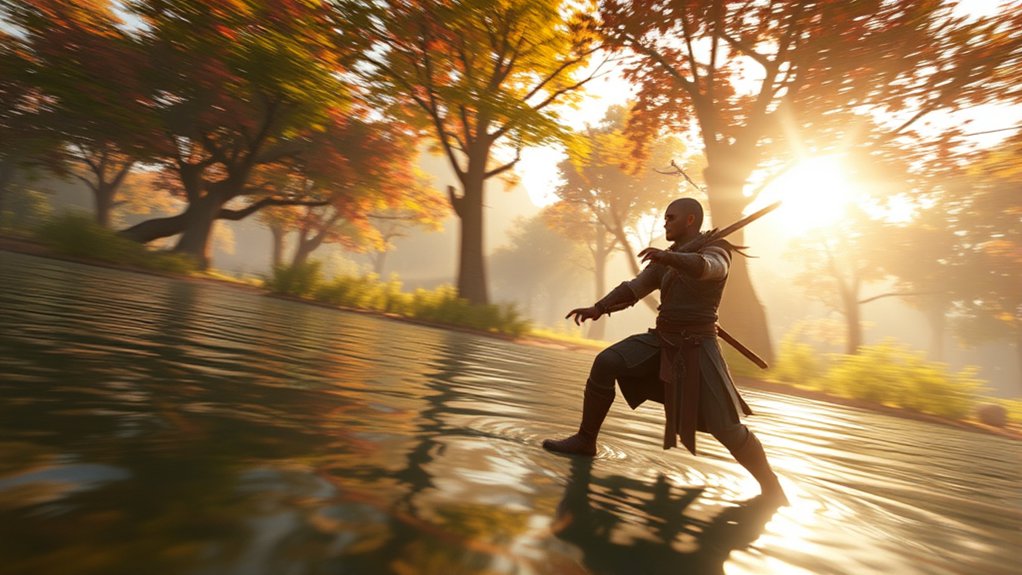
Although disabling motion blur cleans up the image, real performance gains in Oblivion Reloaded usually come from how you handle reflections.
Turn motion blur off in OblivionReloaded.ini (set `MotionBlur=0`) and disable BloodLens too, so you’re not wasting resources on post‑processing you don’t want. This improves clarity and slightly smooths gameplay, but it’s not the main fps lever.
For faster, more stable performance, start with OblivionLauncher.exe, choose the ultra‑high preset, and disable anti‑aliasing.
In-game, toggle screen space reflections off; you’ll gain noticeable fps, especially in cities and around water.
In Oblivion Reloaded’s ini, keep `WaterReflectionMapSize` high enough for decent quality but not absurdly large, and turn off `SnowAccumulation` and `WetWorld` to avoid weather‑related hitches.
If your `RendererInfo.txt` confirms Shader Model 3.0 support, enable it in Oblivion Reloaded and disable any ENB to prevent conflicts and reclaim additional performance.
Troubleshoot Motion Blur Still Appearing After Changes
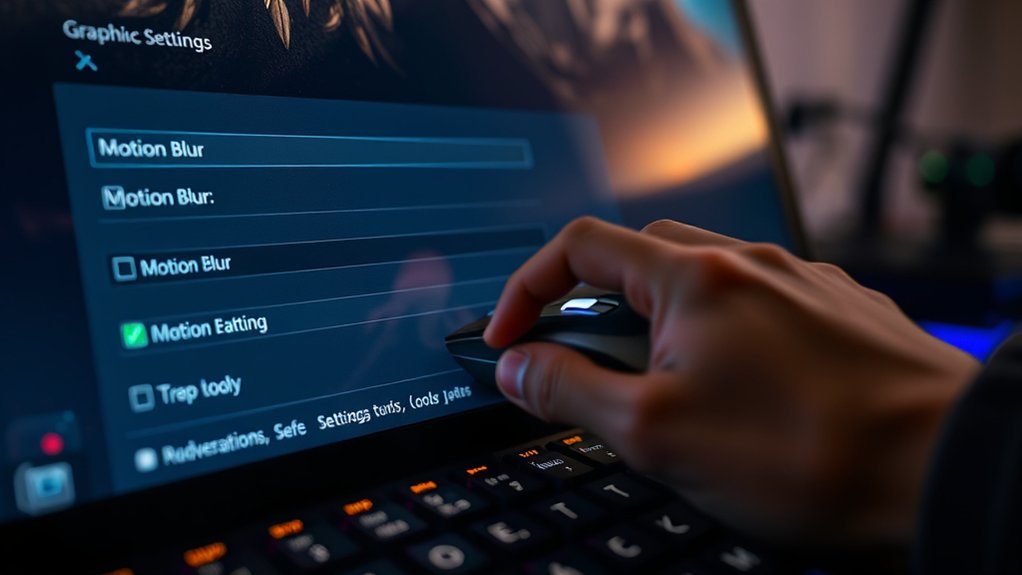
Even after you’ve turned motion blur off everywhere you can find, Oblivion Reloaded and the base game can still sneak it back through leftover configs or conflicting settings.
Start by resetting the base game: delete Oblivion.ini in your /My Games/Oblivion folder (don’t touch Oblivion_default.ini), let the game regenerate a clean ini, then redo your motion blur changes.
Next, open OblivionReloaded.ini. In the [Effects] section, set `MotionBlur=0`, and set `SaveSettings=0` so the mod stops rewriting your edits.
Open OblivionReloaded.ini, disable MotionBlur, then lock your changes by setting SaveSettings to 0
Make sure you’re not using conflicting framerate manager options that might reintroduce effects or change how fast scenes feel.
Now verify everything in all three places:
- In-game graphics menu: scroll down and confirm motion blur is off.
- OblivionLauncher.exe: recheck graphics presets didn’t toggle it back.
- In-game testing: move quickly, pan the camera, and confirm objects stay sharp.
Manage Other Blur Effects (Blood, Low Health, Fatigue)
Once motion blur itself is under control, you still need to tame the other blur-style effects that Oblivion Reloaded layers on top of your visuals: blood splatter on the screen, low-health distortion, and fatigue-induced haze.
Open `Data/OBSE/Plugins/OblivionReloaded.ini` and go to the `[Effects]` section. Set `BloodLens=0` to disable the fake “blood on camera” overlay, but keep Blood Decals on High in the vanilla video options so you still see blood on surfaces.
Next, disable health and fatigue blur by setting `LowHF=0` (or `Enabled=0` under a dedicated LowHF block). That removes the red-tinted blur and haze that trigger at low health or fatigue.
In `[LowHFSound]`, you can either turn the audio cues off entirely or just tweak thresholds while keeping visuals disabled. This approach cuts visual noise and prevents any performance hit from these screen-space effects.
Frequently Asked Questions
Can I Disable Motion Blur Only for Combat but Keep It During Exploration?
You can’t separate motion blur for combat and exploration; the game only offers global control. You either toggle it in the graphics menu or disable it in OblivionReloaded.ini, unless you install a custom intensity-tweaking mod.
Does Turning off Motion Blur Affect Controller or Camera Sensitivity Settings?
No, it doesn’t. When you disable motion blur, you only change a visual post‑processing effect. Your controller sensitivity, camera sensitivity, and FOV remain exactly the same unless you adjust those settings separately.
Is Motion Blur Disabled Separately for First-Person and Third-Person Views?
No, you can’t disable motion blur separately per view. You toggle it globally in OblivionReloaded.ini via MotionBlur=0 under [Effects], which affects both first- and third-person. You won’t find any per-view motion blur setting.
Will Disabling Motion Blur Impact Other Oblivion Reloaded Shader Effects?
No, you won’t affect other Oblivion Reloaded shaders by disabling motion blur. You can turn it off independently; screen space reflections, ray tracing, snow accumulation, wet world, water, and LowHF all keep working normally.
Can I Use ENB Motion Blur While Oblivion Reloaded Motion Blur Is Off?
Yes, you can. Disable Oblivion Reloaded’s MotionBlur and related effects in OblivionReloaded.ini, keep SaveSettings=0 after changes, turn off ShaderModel3 for ENB, then enable motion blur only in your ENB preset for compatibility.
Conclusion
You’ve got full control over motion blur in Oblivion Reloaded now. By using the recommended graphics setup, turning it off in the menu, and double-checking the OblivionReloaded.ini settings, you’ll keep the image sharp and responsive. If you still see blur, you know how to track down reflections, trails, and other effects that mimic it. Tweak, test in-game, and balance visuals with performance until Oblivion looks and feels just right.