How Do I Delete Bitmoji From My iPhone? Step by Step Guide
To delete Bitmoji from your iPhone, you can remove the avatar in Snapchat or delete your Bitmoji account in the app. In Snapchat, go to your profile > gear icon > search “Bitmoji” > App & Privacy > My Apps > Customize Appearance > Remove My Bitmoji. In the Bitmoji app, tap the gear > My Data > Delete Account, then confirm. Both options erase your avatar permanently, and the next sections show exactly what you lose and alternatives like Memoji.
Key Takeaways
- Open the Bitmoji app, tap the gear icon, go to “My Data,” then select “Reset Avatar” to delete your current Bitmoji design.
- To fully delete your Bitmoji account, open Bitmoji, tap the gear icon, choose “My Data,” then tap “Delete Account” and confirm.
- In Snapchat, tap your profile icon, open Settings, search “Bitmoji,” then choose “Remove My Bitmoji” and confirm to unlink it from Snapchat.
- Deleting or removing Bitmoji permanently erases your avatar, outfits, and purchases, and removes it as your Snapchat profile icon.
- After confirming deletion, there is no recovery option, so ensure you truly want to remove your Bitmoji before proceeding.
Quick Answer: Delete Bitmoji on iPhone (Snapchat vs App)
If you want to delete your Bitmoji on iPhone, you’ll either reset your avatar in the standalone Bitmoji app or manage it through Snapchat, depending on how you created and linked your account. You can also reinstall the Bitmoji app from the App Store later for free if you change your mind and want to create a new avatar.]
If you use the Bitmoji app directly, you’ll delete the avatar inside that app. If your Bitmoji came from Snapchat, the connection between Snapchat and Bitmoji determines what you can remove and where.
Using the Bitmoji app? Delete your avatar there. Linked via Snapchat? Management depends on your Snapchat–Bitmoji connection.
With the standalone Bitmoji app, open it, tap the gear icon in the top right, then tap My Data.
Choose Reset Avatar, confirm with OK, and the app erases your current Bitmoji and sends you back to the initial setup.
You’ll start over by picking a gender, taking a new selfie, and customizing across 19 pages.
You’ll lose any saved outfits in your Bitmoji closet, but your Bitmoji account itself stays active for creating a new avatar later.
Remove Your Bitmoji From Snapchat on iPhone (Step-by-Step)

Removing your Bitmoji from Snapchat on your iPhone only takes a few taps, but the exact option’s a bit buried in settings.
Open Snapchat, then tap your profile icon in the top‑left of the camera screen. On your profile, tap the gear icon in the top‑right to open Settings. If your Bitmoji was originally created through Snapchat, deleting it will also permanently remove the avatar and any purchased clothes tied to that account.]
Use the search bar at the top of Settings and type “Bitmoji.” Under App & Privacy > My Apps, tap Customize Appearance, then tap Bitmoji to open the management screen.
At the bottom, tap Remove My Bitmoji. Read the confirmation message, then tap Remove to finalize. Snapchat deletes your avatar and its wardrobe, and you’ll see a prompt to create a new Bitmoji.
Alternatively, tap your Bitmoji on the camera screen, go to the gear icon, scroll to Bitmoji, and use the same Remove My Bitmoji option.
When you return to your profile, your Bitmoji’s gone and Snapchat will offer to set up a new one.
What You Lose After Deleting Bitmoji (And Can You Undo It?)
Now that you know how to remove your Bitmoji from Snapchat on your iPhone, it’s worth understanding what that choice actually erases and whether you can get any of it back.
If you created your Bitmoji through Snapchat, deleting it wipes your avatar permanently. All your appearance tweaks, saved outfits, and sticker variations disappear. Even though the standalone Bitmoji app is shutting down, your avatar and sticker library will still be available through Snapchat and web access if you haven’t deleted them.
Any fashion items you bought for your closet go too, and there’s no way to restore them.
Purchased fashion items vanish with your avatar as well, and they’re gone for good once deleted.
You’ll also lose Snapchat integration. Your Bitmoji won’t show as your Snapchat profile icon or appear in the camera anymore, and any outfits you’d linked to Snapchat vanish once you confirm removal.
Your keyboard extension or web access only stay useful if you still have a non-deleted avatar.
You can’t undo this. Once you tap to confirm removal or deletion, there’s no recovery option—no backups, no restore button.
If you want Bitmoji again, you must recreate everything from scratch.
Permanently Delete Your Bitmoji App Account on iPhone

Take the extra step and erase your Bitmoji account entirely from your iPhone when you’re sure you’re done with it.
Deleting the app isn’t enough—you’ll need to remove the account stored on Bitmoji’s servers. Make sure Bitmoji’s installed and updated, then follow these steps on your iPhone. Before you do, remember that there is no recovery option after deletion, so be certain you really want to permanently remove your account.
- Open the Bitmoji app, tap your round gear icon in the top-right corner, then scroll and select My Data.
- At the bottom of the My Data screen, tap Delete Account, then confirm in the iOS popup dialog to finalize permanent deletion.
- If you used Snapchat to sign up, your Bitmoji account deletes and unlinks from Snapchat automatically; all connections are severed.
- Know the consequences: your avatar, closet, and any purchased fashion items are lost forever, can’t be restored, and would need to be recreated from scratch if you ever return to Bitmoji.
Bitmoji vs iPhone Memoji: How to Change the Right Avatar
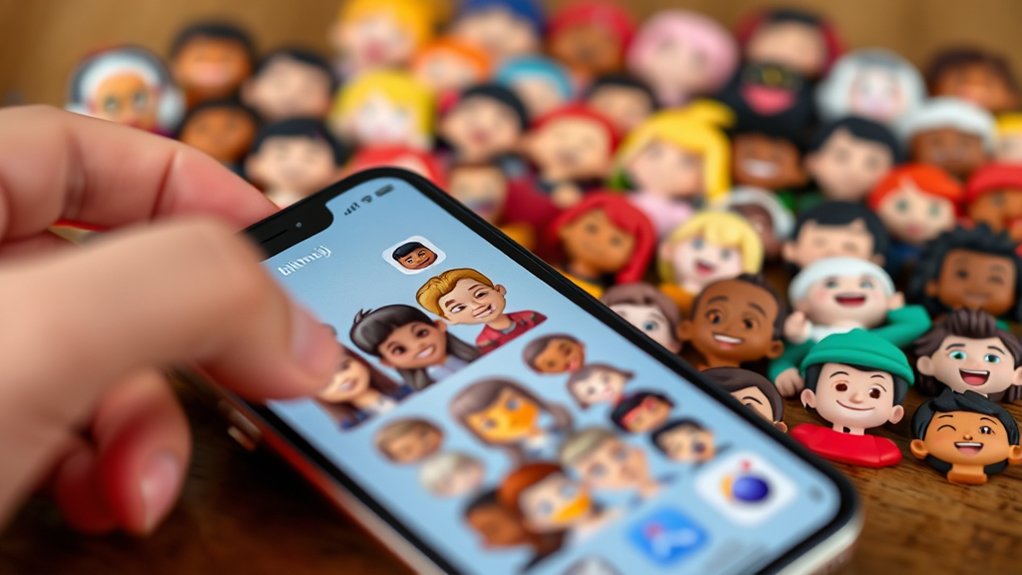
Once you’ve cleared out your Bitmoji account, it’s easy to wonder whether you should rely on Bitmoji or Apple’s built-in Memoji for your next avatar. If you live in Snapchat, Bitmoji still makes sense: you install the Bitmoji app, snap a selfie, pick a gender, tweak facial features, and dress your character from “My Closet.” It’s cartoon‑style and focused on fun stickers you can drop into chats. Because full customization is only supported in the Bitmoji mobile app, you’ll need your phone whenever you want to seriously change your avatar’s look.
Memoji fits better if you mostly use Apple’s ecosystem. You create it in Messages, adjust head shape, skin tone, hair, and more, then reuse it across Messages and FaceTime. Animated Memoji even mirror your expressions and record up to 30 seconds of audio.
| Choose Bitmoji When… | Choose Memoji When… |
|---|---|
| You mainly use Snapchat | You mainly use Messages/FaceTime |
| You want quick selfie-based setup | You want precise sliders and options |
| You prefer bold cartoon stickers | You want animated, face‑tracking avatars |
Conclusion
You’ve now seen exactly how to remove Bitmoji from Snapchat, delete the Bitmoji app account on your iPhone, and switch over to Apple’s built‑in Memoji if you want. Take a moment to decide whether you just want Bitmoji off Snapchat or gone for good. Either way, you’re in control of your avatar and privacy. When you’re ready, follow the steps again and tweak your setup whenever your style changes.